

Daylight Saving Time Reminder for Omnipod 5 Users

As most of Australia prepares to shift into Daylight Saving Time on Sunday, 5 October, we want to make sure all Omnipod 5 users are informed about what that means for insulin delivery.
There is important information you need to know about the time changes and how they impact your insulin delivery. The changes may affect the time settings on your Omnipod 5 Controller, which can also impact insulin delivery schedules.
To make sure this is an easy change, we’ have put together the below information to all Omnipod 5 users.
Note: If you are a healthcare professional training new users, please ensure this information is included during onboarding.
Why Time Zone Settings Matter
Your ‘Insulin Delivery Time Zone’ determines when your insulin is delivered. It is not updated automatically, so it’s important to manually adjust it if your location changes or when Daylight Saving begins.
Your Device Time Zone is the time shown on your Controller’s lock screen and status bar. While it can be set to update automatically, it should always match your Insulin Delivery Time Zone to avoid inconsistencies.
What to Expect on 5 October
On the morning of 5 October, your Omnipod 5 Controller will detect the Daylight Saving Time change and display a prompt.
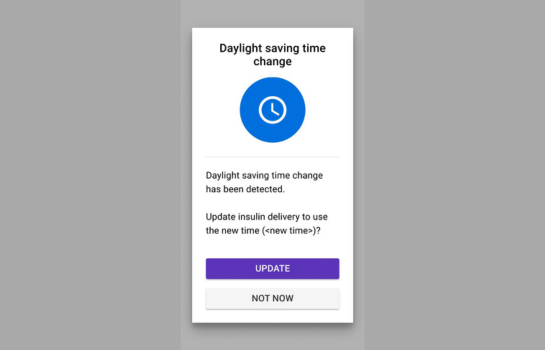
- Queensland users: As Daylight Saving is not observed, select ‘Not Now’.
- If you are travelling, ensure your Insulin Delivery Time Zone reflects your current location.
How to Update Your Insulin Delivery Time Zone
Follow these steps to manually update your Insulin Delivery Time Zone:
- Switch to Manual Mode
- Tap the Menu button (☰)
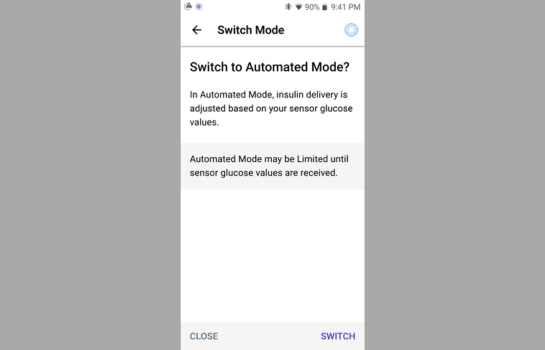
- Select Switch Mode
- Tap Switch
- Change the Time Zone
- In Manual Mode, go to:
Menu (☰) > Settings > General > Insulin Delivery Time Zone - If you have an active Pod:
- Tap Pause Insulin
- Tap Yes
- Select your correct time zone
- Tap Save, then Confirm
- Tap Yes to restart insulin delivery
- In Manual Mode, go to:
How to Check or Adjust Your Device Time Zone
Your Device Time Zone is the time displayed on the status bar and the lock screen. You need to be sure your Device Time Zone and your Insulin Delivery Time Zone match.
Your ‘Device Time Zone’ can be set to update automatically or manually. Here’s how to manage it:
- Access Time Zone Settings
- Tap Menu (☰) > Settings > General > Time Zone
- If you have an active Pod
- Tap Pause Insulin
- Tap Yes
- Toggle Automatic Time Zone
- Tap Device Automatic Time Zone
- Use the toggle to turn ON (blue) or OFF (grey)
When the device’s Automatic Time Zone is OFF, you have access to the Controller time zone
- Manually Set the Controller Time Zone
- Tap Select Time Zone
- Choose your correct time zone from the list
Important Final Step: Return to Automated Mode
Once your time zones are correctly set:
- Tap Menu (☰) > Switch Mode
- Tap Switch to return to Automated Mode
Need Help?
If you have any questions or need assistance, the Omnipod Australia Customer Service Team is available 24/7 on 1800 954 074
Accurate time settings are essential for safe and effective insulin delivery. Whether you're staying local or travelling across time zones, a quick check of your Controller settings can make all the difference.

Jo Walsh
Digital Communications Lead
Jo is an experienced digital communications professional with 20 years of experience in the digital space. With a strong technical foundation in social media strategy and website development, she brings both creativity and precision to her work.
Jo is also a passionate advocate for peer support, drawing on her lived experience with type 1 diabetes wishing to highlight the importance of connection within communities.


